
Building automations used to mean learning Python, wrestling with APIs, and spending hours debugging code that nobody else could read.
That wall is gone now.
Claude Code is an AI agent from Anthropic that lets you describe what you want in plain English — and then watches as it builds the whole thing for you. It creates files, writes code, tests the output, and fixes errors on its own.
In this guide, you will learn exactly how Claude Code works, what you need to get started, and how to build and deploy your first real automation — even if you have never opened a terminal before. By the end, you will have a repeatable, structured framework you can apply to any automation idea you have.
What Is Claude Code?
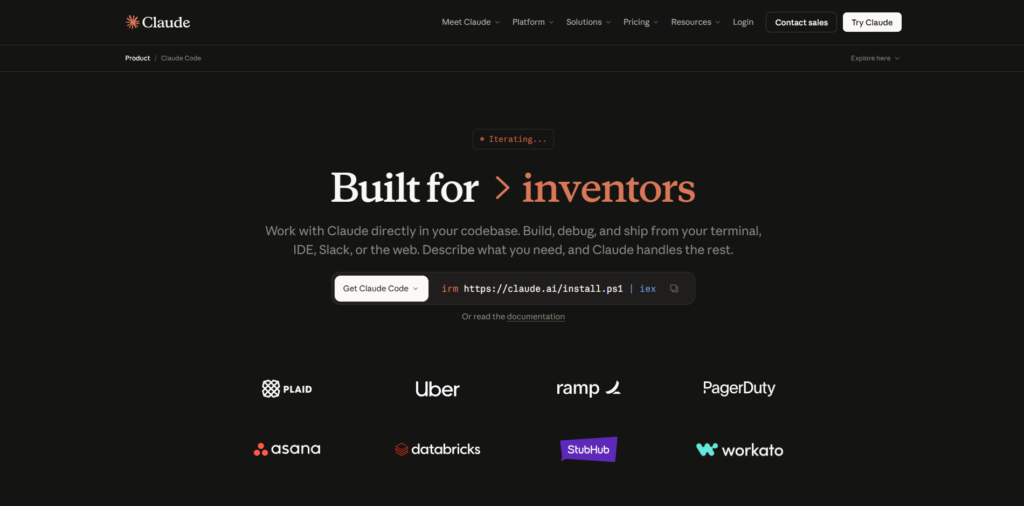
Claude Code is an AI coding agent made by Anthropic. It runs inside your code editor — most commonly Visual Studio Code — and acts like an extremely capable technical assistant that can read your plain-language instructions, write the code needed to carry them out, execute that code, check the results, and fix problems on its own.
It is not a chatbot. It is an agent — meaning it takes real actions on your computer and inside real apps like Gmail, Google Sheets, and YouTube.
Think of it this way: you describe the end result, Claude Code figures out the steps, builds the tools needed, and then executes them in the right order.
Who Should Use Claude Code?
- Business owners who want to automate repetitive tasks like weekly reporting or data collection
- Content creators who need regular research or analytics delivered automatically
- Marketing teams who want automated lead alerts, email summaries, or competitive monitoring
- Freelancers and consultants building client-facing automation systems
- Anyone who has used no-code tools like Zapier or n8n but wants more flexibility and power
Claude Code may not be ideal if you want a simple drag-and-drop interface with zero setup. There is a short onboarding curve — but it is far shorter than learning to code from scratch.
The WAT Framework: The Structure Behind Every Claude Code Project
Before you build anything, understanding the framework that makes Claude Code reliable and scalable is the single most important thing you can do. The framework is called WAT — Workflows, Agents, and Tools.
Layer 1: Workflows
A workflow is a plain-language document stored as a Markdown file (.md). It describes a process — the goal, the inputs required, which tools to use, what the output should look like, and how to handle edge cases. You write this the same way you would brief a new team member: clearly, in simple steps, with no technical jargon required.
Layer 2: The Agent
The agent is Claude Code itself. It reads the workflow, coordinates the tools in the correct sequence, handles failures, and asks clarifying questions when something is unclear. The agent does not guess — it follows your workflow and adapts intelligently when things go wrong.
Layer 3: Tools
Tools are Python scripts (.py files) that execute specific actions. Fetching data from YouTube, generating a PDF, sending an email, exporting to Google Sheets — each of these is a separate tool. The agent calls the right tools in the right order based on the workflow.
This separation matters. The agent handles reasoning (flexible and adaptive). The tools handle execution (precise and repeatable). Together, they create a system that is both smart and reliable.
| Layer | File Type | What It Does |
|---|---|---|
| Workflows | .md (Markdown) | Plain-language SOPs defining the goal, steps, tools to use, and expected output |
| Agent | Claude Code itself | Reads the workflow, coordinates tools, handles errors, asks questions when needed |
| Tools | .py (Python) | Scripts that execute real actions: API calls, file creation, sending emails, database queries |
Step-by-Step: Setting Up Claude Code
Here is exactly what you need to do to get Claude Code running from scratch.
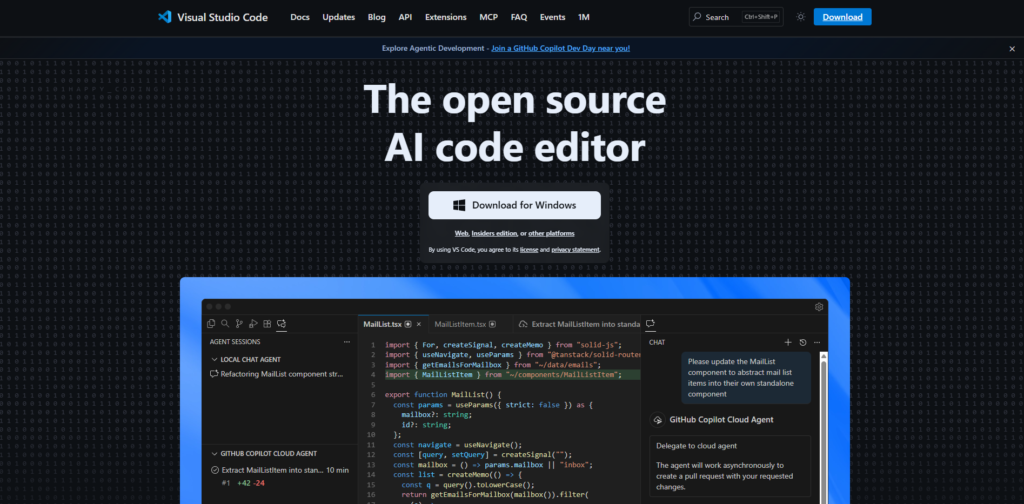
Step 1 — Download VS Code Go to code.visualstudio.com and download Visual Studio Code for free. This is the editor where Claude Code lives.
Step 2 — Install the Claude Code Extension Open VS Code, click the Extensions icon on the left sidebar, search for “Claude Code,” and click Install.
Step 3 — Sign In with Your Anthropic Account You need a paid Claude plan. The Pro plan (around $17/month) includes Claude Code access. You will be prompted to sign in after installation. If you plan to run heavy automations frequently, the Max plan avoids hitting usage limits faster.
Step 4 — Create and Open a Project Folder Create a new folder on your computer for your project. In VS Code, open that folder. Claude Code always works inside a project — this step is required before you can do anything.
Step 5 — Open Claude Code Click the Anthropic logo icon in the top-right corner of VS Code to open the Claude Code panel. You now have an AI agent ready to work with you.
Step 6 — Enable Bypass Permissions Mode In VS Code settings, search for “Claude Code” and turn on Allow Bypass Permissions Mode. This lets the agent run multiple steps automatically without asking you to approve each one. It is a significant time-saver for any real automation project.
The claude.md File: Your Project’s System Prompt
The very first thing you should create in any new Claude Code project is a claude.md file. This is a Markdown file that acts as the system prompt for your agent — it tells Claude Code who it is, what tools it has access to, how your files are organized, what framework you are using, and how to handle edge cases.
Without it, Claude Code is generic. With it, you have a specialized assistant that knows your exact project structure and goals.
A well-written claude.md file for the WAT framework includes:
- Your role and project objective
- The three-layer structure (workflows, agent, tools)
- Where each file type lives in the folder structure
- Instructions for how to handle errors and self-heal
- Rules for storing secrets (never in code, always in .env files)
- How to adapt and update workflows when something is learned
You write this file once. It applies to every conversation you have inside that project.
Planning Mode: The Most Important Step Before Building
Whenever you are about to describe a new automation, always switch Claude Code into Plan Mode before sending your request. You will see this option at the top of the Claude Code panel.
In Plan Mode, the agent does something valuable before writing any code: it researches your request, scans all the files already in your project, and comes back with clarifying questions you may not have thought of. It also searches the web to find the best technical approach for your specific goal.
Why This Matters
Skipping Plan Mode and jumping straight to building often results in an automation that technically runs but does not match what you actually wanted. A few minutes in Plan Mode prevents hours of corrections later.
What a Strong Planning Prompt Looks Like
Be specific about three things: the goal, the inputs, and the output. For example:
“I want to automatically collect data from the top YouTube channels in the AI niche each week, analyze what types of videos are performing best, and send me a branded PDF report with charts and visualizations to my Gmail every Monday morning.”
After you send this, Claude Code comes back with follow-up questions. What channels? What email? Should it track data in a spreadsheet too? Answer those questions thoroughly and let the agent finalize the plan before approving it.
Real-World Example: Building a YouTube Analytics Automation
Here is a full walkthrough of building a real automation from start to finish — exactly as it was built using Claude Code.
The Goal
Build a system that automatically:
- Discovers and scrapes YouTube channels in the AI niche
- Analyzes trending videos and engagement patterns
- Generates a branded PDF report with charts and visualizations
- Exports the data to Google Sheets
- Emails the full report every Monday morning
What Claude Code Built (After One Planning Conversation)
| Tool File | What It Does |
|---|---|
| discover_channels.py | Automatically finds top YouTube channels in the AI niche |
| fetch_youtube_data.py | Pulls video stats, views, likes, and comments via YouTube API |
| analyze_youtube_data.py | Processes the raw data and identifies trends |
| generate_charts.py | Creates visual charts from the analyzed data |
| generate_pdf.py | Builds a branded, multi-page PDF report |
| export_to_sheets.py | Exports structured data to a Google Sheet |
| send_email_report.py | Delivers the PDF report via Gmail |
All seven Python files were created automatically. No code was manually written.
The Output After One Full Run
| Metric | Result |
|---|---|
| YouTube channels tracked | 30 |
| Videos analyzed | 187 |
| Charts generated | 6 |
| PDF report pages | 9 |
| Data exported to Sheets | Yes — 3 tabs |
| Report delivered to Gmail | Yes |
The PDF included median views, engagement rates, trending keywords, top-performing channels, posting pattern analysis, and content recommendations. The Google Sheet had three tabs: channel stats, top videos, and a weekly summary.
When Something Went Wrong
The first PDF came back with only two slides — just a title page and a closing page. The charts were generated but not included.
Claude Code did not need to be told what happened. It:
- Identified the missing content issue on its own
- Diagnosed the problem in the PDF generation tool
- Fixed the tool script
- Updated the workflow file to prevent the same issue in the future
- Re-ran the workflow and delivered a correct nine-slide report
This is what self-healing looks like in practice. Every failed test makes the system more reliable over time.
MCP Servers: Connecting Claude Code to External Apps
MCP stands for Model Context Protocol. Think of it as a universal connector that links Claude Code to external services without requiring you to manually wire up separate API calls for every possible action.
Instead of connecting to Gmail’s API individually for reading emails, sending emails, and accessing attachments, you connect to the Gmail MCP server once. The agent then knows how to use all of Gmail’s capabilities automatically.
| Service | MCP Server Available | What It Enables |
|---|---|---|
| Gmail | Yes | Read, send, and search emails |
| Google Calendar | Yes | Create, update, and delete events |
| Notion | Yes | Read and write database pages |
| Slack | Yes | Send messages and read channels |
| YouTube | Use API directly | Fetch channel and video data |
| Perplexity | Yes | Real-time web research inside workflows |
When planning your workflow, simply ask Claude Code whether an MCP server or a direct API would work better for your specific use case. It will research both options and recommend the right one.
Claude Skills: Reusable Knowledge for Better Outputs
Skills are saved sets of instructions that Claude Code can load dynamically when they are relevant. Instead of typing the same setup instructions every time you start a new project, you install a skill once and the agent uses it automatically whenever appropriate.
Skills vs. MCP Servers: Key Differences
| MCP Servers | Claude Skills | |
|---|---|---|
| Purpose | Connect to external services and take actions | Provide custom instructions and knowledge |
| Example use | Send a Gmail, fetch YouTube data | Generate professional PDFs, design better UIs |
| How it works | Real-time API connection | Loaded as instruction context when relevant |
| Best for | Data retrieval, app integrations | Improving output quality and consistency |
When to Create a Custom Skill
If you find yourself typing the same instructions into Claude Code across multiple sessions or projects, that is a clear signal to turn it into a skill. Common candidates include:
- Design standards for generated PDFs or reports
- Brand guidelines for any visual output
- Deployment steps for a specific hosting platform
- Company-specific data formatting rules
Skills can be installed globally (available across all projects) or locally (specific to one project). Global skills are more useful for things you use consistently across everything you build.
Testing and Optimizing Your Workflow
Testing is not an optional step — it is where real quality improvement happens. Claude Code’s self-healing behavior makes this process much faster than traditional debugging, but you still need to actively review what comes back.
What to Check During Testing
| What to Check | Why It Matters |
|---|---|
| Were all expected outputs delivered? | Confirms the full workflow ran end to end |
| Does the data look accurate and complete? | A process can run without errors but still produce wrong data |
| Are file formats and layouts correct? | PDF pages, chart labels, column headers — these need human review |
| Did API usage stay within limits? | Heavy testing can hit free-tier quotas before deployment |
| Did the agent log any errors or warnings? | Even resolved errors tell you something about workflow reliability |
The Self-Healing Loop
When a tool fails during testing, the agent:
- Reads the error output
- Researches the cause (including checking API documentation if needed)
- Fixes the tool script
- Re-runs the test
- Updates the workflow file so the same error cannot happen again
This means your system gets measurably better with every failed test — not just patched temporarily, but structurally improved.
Deploying Your Automation with Modal
Once your workflow is tested and producing the correct output, the next step is deployment — making it run automatically without any manual input from you.
Modal is a cloud infrastructure platform built for this purpose. It hosts your automation in the cloud and runs it on a schedule or via a webhook. Crucially, it only charges you when your automation actually executes — not by the hour or the day. New accounts receive free credits to get started without any upfront cost.
How Deployment Works (Step by Step)
Step 1 — Tell Claude Code you want to deploy to Modal. Paste in the setup command from your Modal dashboard and let the agent handle the rest.
Step 2 — Claude Code packages your tools and workflow, creates a Modal deployment file, and stores your API keys as Modal secrets. Nothing gets written into public-facing code.
Step 3 — Choose a trigger:
- Cron schedule — Runs automatically at a set time (e.g., every Monday at 6 AM)
- Webhook trigger — Fires when an external event occurs (e.g., a new form submission, a CRM update, an incoming lead)
Step 4 — Claude Code deploys the app and gives you a link to your Modal dashboard where you can monitor runs, view logs, and manage versions.
Schedule vs. Webhook Triggers
| Trigger Type | Best For | Example |
|---|---|---|
| Cron Schedule | Regular, time-based tasks | Weekly analytics report every Monday at 6 AM |
| Webhook | Event-driven tasks | Send a lead notification when a form is submitted |
One Critical Distinction
When you deploy, you are pushing the workflow and tools to the cloud — not the Claude Code agent itself. The agent lives locally in your editor. If you want to update a deployed workflow, you come back to Claude Code, make changes, and push the new version back to Modal.
Security Checklist Before You Deploy
Before pushing anything to the cloud, ask Claude Code to run a security review. This takes a few minutes and is non-negotiable.
| What to Check | What Could Go Wrong if Ignored |
|---|---|
| API keys exposed in code files | Keys get scraped if the project is ever shared or committed to GitHub |
| Webhooks without authentication | Anyone can trigger your automation with a fake request |
| Secrets stored in workflow files | Markdown files are easy to share accidentally |
| No rate limit handling in tools | Automation fails unexpectedly when API quotas are hit |
| Credentials committed to a repository | Permanently exposed, even if deleted later |
Claude Code will flag any critical issues and fix them before deployment. In the example walkthrough, three security issues were found and resolved before the automation went live — all automatically.
Common Mistakes to Avoid
| Mistake | What to Do Instead |
|---|---|
| Skipping Plan Mode | Always use Plan Mode for new automations. Answer every question the agent asks before approving the plan. |
| Being vague about the output | Describe exactly what the deliverable should look like — pages, file type, sections, branding. |
| Storing API keys in tool files | Always use a .env file locally and Modal secrets for deployment. |
| Deploying without testing | Run the full workflow at least twice locally. Catch formatting and data issues before they run on a schedule. |
| Ignoring self-healing feedback | Read what the agent writes when it fixes an error. It tells you a lot about how to write better workflows. |
| Not running a security review | Ask Claude Code to audit your code before deployment every time. |
| Over-automating too early | Build one small workflow, deploy it, confirm it works, then build the next one. |
Tracking and Improvement
Once your automation is live, tracking performance helps you catch issues early and continuously improve the system.
Modal Logs
Every run in Modal is logged with a success or failure status, execution time, and a full output trace. Check these logs weekly, especially in the first month after deployment. When something fails, copy the error output from Modal and paste it directly into Claude Code — the agent will diagnose and fix it.
Google Search Console
If your automation produces content that gets published online, Google Search Console shows how that content performs in search — impressions, clicks, and keyword rankings. Use this to measure whether your automated content is reaching the right audience.
Google Analytics
If your automation connects to any customer-facing workflow or website, Google Analytics tracks whether it is driving real engagement, sign-ups, or conversions. Pair this with Modal logs to get a complete picture.
Frequently Asked Questions
Do I need to know how to code to use Claude Code? No. You communicate with Claude Code entirely in plain English. It writes and runs all the code on your behalf. Some basic familiarity with concepts like API keys and folder structures is helpful, but no coding knowledge is required.
What Claude plan do I need? Claude Code is available on the Pro plan and above. If you plan to run frequent, heavy automations, the Max plan prevents you from hitting usage limits too quickly.
How is Claude Code different from Zapier or n8n? Zapier and n8n use visual drag-and-drop workflows. Claude Code handles more complex logic, writes custom code when needed, self-corrects errors automatically, and can work with any service that has an API — not just pre-built connectors.
Can automations run on a schedule without manual input? Yes. Using Modal for deployment, you can schedule your automation to run at any interval — hourly, daily, weekly, or triggered by an external event via webhook.
Are my API keys safe? Yes, when handled correctly. Keys are stored in a .env file locally and as Modal secrets during deployment. They are never written directly into workflow or tool files.
What happens if my automation breaks after deployment? Open the error log in your Modal dashboard, copy the output, and paste it into Claude Code. The agent diagnoses the issue, fixes the relevant tool or workflow, and you push the corrected version back to Modal.
Can I reuse workflows across different projects? Yes. Workflows are plain Markdown files and tools are Python scripts — both are portable. Global skills are also available across all projects automatically.
How much does Modal cost to run automations? Modal only charges when your automation runs. New accounts receive free credits. A weekly automation that takes a few minutes to execute will cost very little — most users run for weeks before spending more than a few dollars.
Conclusion
Claude Code changes what is possible for people who cannot code. What used to require a developer, an API integration layer, and hours of debugging can now be described in plain language, built by an AI agent, and deployed to run automatically in the cloud.
The WAT framework gives your projects a clean, scalable structure from day one. Plan Mode ensures your automations are built right the first time. Self-healing behavior means your systems get better over time. And Modal deployment means you set something up once and trust it to keep running reliably.
Start with something simple — a weekly report, a data collection script, a lead notification system. Follow the framework in this guide, read everything the agent tells you as it works, and the whole system will start to click faster than you expect.
Your next step: Download VS Code, install the Claude Code extension, and initialize your first project using the WAT framework. Describe one automation you have been putting off. Let Claude Code ask you questions. Approve the plan. Watch it build.
Once that first automation is live, you will never go back.
Share this post in AI communities, your email list, or with anyone on your team who is still doing repetitive tasks manually. Practical beginner guides like this are rare — sharing it helps others who are stuck at the same starting line you were.
Tools Mentioned
| Tool | What It Does | Why It Matters |
|---|---|---|
| Claude Code | AI coding agent that writes, runs, tests, and fixes code from plain-language instructions | Makes automation accessible to non-developers without sacrificing power or flexibility |
| Visual Studio Code | Free code editor where Claude Code runs as an extension | Gives you a clean interface for managing project files and talking to the agent |
| Modal | Cloud infrastructure for hosting and running automations on schedules or webhooks | Only charges when your automation runs — cost-effective for periodic or event-driven tasks |
| YouTube Data API | Google’s official API for fetching channel and video statistics | Powers any YouTube analytics or content research automation |
| Gmail (via OAuth or MCP) | Email delivery and inbox access | Used to send automated reports, lead notifica |

Leave a Reply